


Your iPhone has a device name that helps identify it when you connect to other Apple devices, use AirDrop, share your internet connection, or manage your devices through a computer. When you first set up an iPhone, it may receive a name based on your Apple Account details, such as your first name followed by “iPhone.” Although this default name works perfectly well, you might prefer something more personal, professional, or easier to recognize.
Learning how to change iphone name is straightforward and does not require any special technical knowledge. Apple provides a built-in setting that allows you to update your device’s name directly from your iPhone. You do not need to install an application, reset your phone, or change your Apple Account information to complete the process. The new name can help distinguish your iPhone from other devices, especially when several people in your household own Apple products.
In this guide, you will discover the exact steps to rename your iPhone, understand where the updated name appears, explore useful naming ideas, and troubleshoot common problems. Whether you are using a newer iPhone or an older model with a supported version of iOS, the process is generally similar. The instructions focus on practical steps that make managing your device easier.
Why Should You Change Your iPhone Name?
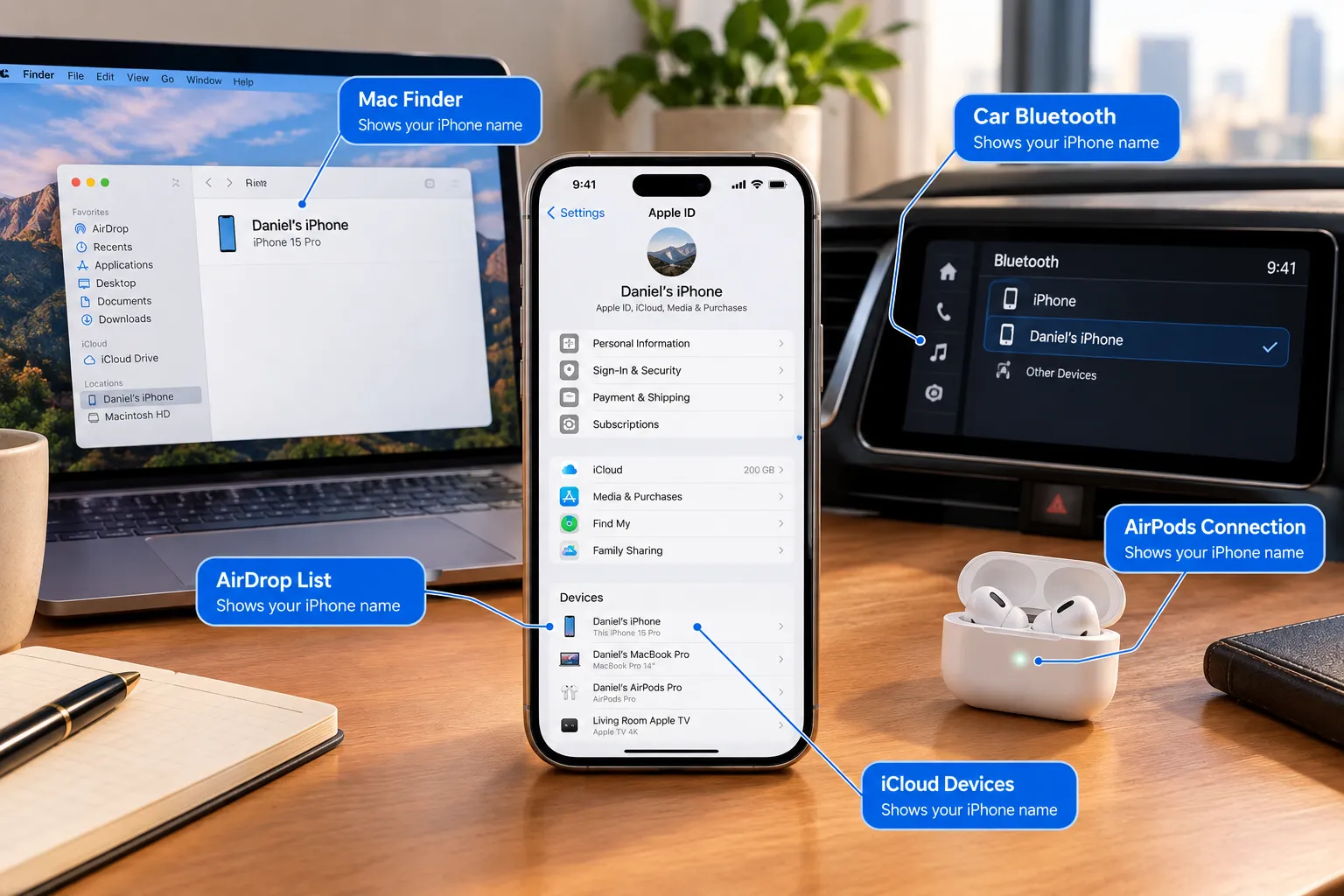
Changing your iPhone’s name may seem like a minor customization, but it can be helpful in everyday situations. Imagine that your family has three iPhones, two iPads, and a MacBook. When you open AirDrop or check connected devices, similar default names can make it difficult to identify the correct phone. Giving your device a distinctive name makes recognition easier and reduces the chance of selecting the wrong device when sharing files or managing connections.
A personalized name is also useful when connecting your iPhone to a Windows PC, Mac, car entertainment system, or personal hotspot. For example, a name such as “Alex’s iPhone 16” is more recognizable than a generic device label. If you use your phone for work, you might choose a simple professional name that helps you distinguish it from your personal devices. The change affects the device’s displayed name rather than its basic functionality, so it is a convenient way to organize your digital environment without altering your settings or personal files.
How to Change iPhone Name Through Settings
The easiest method is to use the Settings app already installed on your device. You can complete the change in less than a minute, provided your iPhone is functioning normally. You do not need a computer, an internet connection, or an additional application for the basic renaming process.
To understand how to change iphone name correctly, follow the instructions below. The menu labels may vary slightly depending on your iOS version, but the main option remains in the General settings area.
Step 1: Open the Settings App
Unlock your iPhone and locate the Settings app on the Home Screen or in the App Library. Its icon looks like a set of gears. Tap it to open the main settings menu, where you can manage your display, connectivity, privacy, notifications, and other device preferences.
You do not need to open your Apple Account profile at the top of the screen. The device name is managed separately from your account information, so going directly to General is the simplest approach.
Step 2: Select General
Scroll through the Settings menu until you find General, then tap it. This section contains important device information and options related to software updates, storage, keyboard preferences, background app refresh, and other system features.
Look through the available options until you find About. This page contains details about your iPhone, including its model name, software version, model number, serial information, and current device name. You can review these details without making any changes.
Step 3: Tap the Name Option
At the top of the About screen, you should see the current name assigned to your iPhone. Tap the Name field to open the editing screen. Your existing device name will appear in a text field, allowing you to replace it with a different one.
For example, if the current name is “Rahul’s iPhone,” you could change it to “Rahul Personal Phone” or “Office iPhone.” Choose a name that is easy to recognize and appropriate for the places where you use your device. Avoid including private information that you would not want displayed to nearby people when using device-discovery features.
Step 4: Enter Your Preferred Name
Delete the existing name and type your preferred replacement using the on-screen keyboard. You can generally use letters, numbers, spaces, and common punctuation. A short, descriptive name is usually the most practical option because it remains readable on smaller screens and in device lists.
Once you have entered the new name, tap Done on the keyboard. Your iPhone should save the change automatically. There is no separate confirmation screen or restart normally required. Return to the About page to verify that the updated name appears correctly.
Step 5: Check the Updated Device Name
After saving, you can return to the main Settings screen and continue using your iPhone normally. The new name should be available to services and devices that display your iPhone’s device name. Some connected devices may take a little time to refresh their information.
If you do not immediately see the updated name on another device, do not assume the change failed. Close and reopen the relevant menu, reconnect the device if necessary, or allow a short period for the information to refresh.
Where Does Your New iPhone Name Appear?
The device name is used in several places across Apple’s ecosystem and some connected-device experiences. However, changing it does not change every name associated with your phone. Your Apple Account name, contact card, caller ID information, and the name displayed to recipients in messaging services are separate settings or features.
The following table explains where changing the device name may be useful and what to expect after the update.
| Feature | How the new name helps |
|---|---|
| AirDrop | Makes your iPhone easier to recognize when sharing files. |
| Personal Hotspot | Helps other devices identify your iPhone’s hotspot. |
| Computer connections | Can make the device easier to identify in supported computer management tools. |
| Bluetooth | May appear as the device name in certain discovery or connection interfaces. |
| Apple device management | Helps distinguish your iPhone from other devices associated with your account. |
The exact display behavior depends on the software version, connected device, and service being used. Some interfaces may retain previously cached information temporarily. Also, the name displayed during a phone call or in a messaging conversation may come from your contact details or account settings rather than your iPhone’s device name.
How to Choose a Good Name for Your iPhone
Choosing the right device name depends on how you use your phone. If it is your everyday personal device, a simple name combined with a short identifier can be enough. If you own several Apple devices, including a work iPhone and a personal iPhone, distinct labels can help prevent confusion. You could use names such as “Personal iPhone,” “Work Phone,” or “Travel iPhone” to identify each device according to its purpose.
It is also worth considering privacy. Your iPhone’s name may be visible to other people in certain discovery or connection situations, depending on the feature and its settings. For this reason, avoid using your full address, phone number, workplace security information, or other sensitive details in the device name. A simple nickname or neutral label provides the convenience of identification without unnecessarily revealing personal information.
Examples of Useful iPhone Names
Here are a few naming ideas you can adapt to your preferences:
- Personal use: My iPhone, Daily Phone, or Personal iPhone.
- Work use: Office Phone, Work iPhone, or Business Device.
- Multiple devices: iPhone One, Travel iPhone, or Backup Phone.
- Minimal style: Nova, Orbit, or Blue Device.
Your name does not need to be unique worldwide. It simply needs to be distinctive enough for you to recognize your device when multiple phones appear in the same list.
Does Changing Your iPhone Name Affect Your Data?
Changing the device name is a cosmetic setting rather than a factory reset or major system modification. It does not normally delete your photographs, contacts, applications, messages, downloaded files, or other personal data. Your installed apps and customized Home Screen remain as they were, and you do not need to set up your iPhone again.
The process also does not change your phone number, Apple Account credentials, passcode, or cellular plan. Your iCloud data and existing account remain associated with your account as before. The primary result is that the device uses a different name in supported locations. Nevertheless, remember that the name is only one part of device identification. Serial numbers, model information, and other technical identifiers remain unchanged.
Common Problems When Changing an iPhone Name
Although the process is usually simple, some users may experience a small issue when editing the name or checking whether it has changed. Most problems are related to the wrong settings page, temporary display information, or a connection that has not refreshed.
The Name Option Is Difficult to Find
If you cannot locate the name field, make sure you have opened Settings, selected General, and then tapped About. The Name option is normally near the top of that page. It is not the same as the name shown in your Apple Account profile.
If the menu layout differs from these instructions, check which iOS version your phone is running. Menu wording and interface details can change between software releases, but the device name is generally managed through the About section.
The Old Name Still Appears on Another Device
If you have followed how to change iphone name but your computer or another phone still displays the old name, give the connected device time to refresh. Close and reopen the relevant application or connection menu. For a Bluetooth accessory, you may need to disconnect and reconnect the iPhone, depending on the accessory and how it stores device information.
You can also verify the change by returning to Settings, opening General, and selecting About. If the new name appears there, your iPhone has saved it successfully. The remaining issue is likely related to how another service displays or caches device information rather than a failure to rename the phone.
The New Name Does Not Save
If the name field does not appear to retain your changes, try entering a shorter name and tapping Done again. Check that the keyboard has closed and that the updated name appears on the About screen. If the problem continues, close Settings and reopen it, then repeat the process.
You can restart your iPhone if the Settings app appears unresponsive. Before making more substantial changes, ensure that your phone is operating normally and that you are using a supported version of iOS. A factory reset is not necessary for a routine name change and should not be used as a first troubleshooting step.
Can You Change Your iPhone Name Using a Computer?
For ordinary users, changing the name directly on the iPhone is the quickest method. In some supported computer-management workflows, a connected iPhone’s name may be visible through Apple device-management software or other compatible tools. Available options can depend on the computer’s operating system, software version, and connection method.
However, you generally do not need to use a computer simply to rename your device. The Settings method is faster and avoids additional connection steps. If your goal is only to personalize your phone or make it easier to identify during AirDrop and hotspot use, changing the name through General and About is the recommended approach.
Important Things to Remember Before Renaming Your iPhone
Before completing the process, consider how the name will appear in the places where you regularly connect or share information. A clear name makes everyday device management easier, while an overly complicated name can be difficult to recognize on smaller screens. If you regularly use public wireless connections, shared workspaces, or AirDrop, a neutral device name is a sensible privacy-conscious choice.
Keep in mind that changing your device name is different from changing your Apple Account name. If your goal is to update the name associated with your account, contact information, or how other people see you in a particular app, you may need to change a separate setting. Renaming the iPhone itself is specifically intended to identify the physical device in supported system interfaces.
Conclusion
Learning how to change iphone name is an easy way to personalize your device and make it more recognizable when using AirDrop, Personal Hotspot, computer connections, and other supported features. The entire process usually takes less than a minute and can be completed directly from the Settings app without installing software or risking your personal data.