

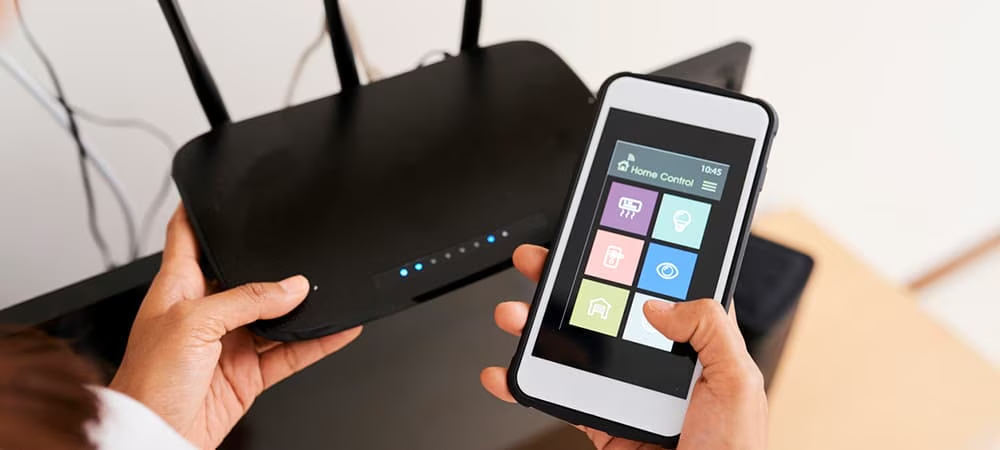

Your WiFi network name is one of the first things you notice when connecting a phone, laptop, smart TV, or other wireless device to the internet. This name, technically called the Service Set Identifier (SSID), helps you identify your wireless network among the connections available nearby. Most routers come with a default name assigned by the manufacturer or internet service provider. Although this default setting works perfectly well, changing it can make your home network easier to recognize and manage.
Understanding how to change wifi name is useful whether you have recently installed a new router, moved into a different home, or simply want to personalize your internet connection. You generally do not need advanced technical knowledge, special software, or professional assistance. In most cases, the process involves opening your router’s administration interface, signing in, finding the wireless settings, and entering a new network name.
The exact instructions depend on your router brand, internet provider, and device configuration. Some routers offer a dedicated mobile application, while others use a browser-based administration panel. This guide explains the process, common differences between router settings, potential problems, and practical security considerations so you can update your network name confidently.
What Is a WiFi Name and Why Should You Change It?
A WiFi name is the label displayed when wireless devices search for available networks. For example, your router might broadcast a default name such as TP-Link_1234, HomeGateway_5678, or a name associated with your internet provider. You can replace this label with something more recognizable, such as GreenHouseWiFi or FamilyNetwork, depending on the options supported by your router.
Changing the network name can make everyday internet use more convenient, especially in apartment buildings or neighborhoods where several wireless networks appear in the same list. A personalized name helps distinguish your connection from those belonging to neighbors. It can also simplify troubleshooting when you have multiple routers, guest networks, or separate wireless connections for different parts of your home.
However, changing the name does not automatically improve internet speed, expand wireless coverage, or strengthen encryption. These benefits depend on other settings and the quality of your equipment. The main purpose of renaming your network is identification and organization, although choosing a less revealing name can also reduce the amount of personal information you broadcast publicly.
How to Change WiFi Name Through Router Settings
The most common method involves accessing your router’s administration interface through a web browser. This approach works with many routers, regardless of whether you use a Windows computer, Mac, Android phone, or iPhone. Your device typically needs to be connected to the router’s network, either through WiFi or an Ethernet cable, before you begin.
First, locate your router’s administration address and login credentials. Common private gateway addresses include 192.168.0.1 and 192.168.1.1, but your router may use a different address. You can often find the correct information on the router’s label, in its instruction manual, or in your internet provider’s setup documentation. Remember that the administration password may differ from the WiFi password used to connect your devices.
Once you have the correct address, open your browser, enter it into the address bar, and press Enter. Sign in using your router’s administrator credentials. Avoid entering login details on unfamiliar websites or search pages; the address should lead to the router’s local administration interface. After signing in, locate a section named Wireless, WiFi Settings, WLAN, or something similar. The available labels vary between manufacturers, but the network name field is usually easy to identify.
Steps to Rename Your Wireless Network
After opening the wireless settings, look for a field labeled SSID, Wireless Network Name, or Network Name. This field contains the name currently displayed on your connected devices. Replace the existing text with your preferred name, making sure you have selected the correct wireless band if your router offers separate names for different networks.
Review the changes before saving. Some routers have separate settings for 2.4 GHz and 5 GHz connections, while newer equipment may also support 6 GHz. If the bands use separate names, decide whether you want to rename each one individually or maintain distinct labels. Select Save, Apply, or the equivalent option to store your new configuration.
Your router may briefly restart its wireless service after applying the change. During this period, your phone or computer might disconnect because the old network name is no longer being broadcast. Select the new name from the available networks and reconnect using the existing WiFi password, provided you have not changed that password as well.
How to Change WiFi Name on a Mobile Phone
You do not necessarily need a desktop or laptop to rename your network. A smartphone can handle the entire process through a browser or the official application provided by your router manufacturer or internet service provider. This is particularly useful when your router is installed in another room or when you normally manage your home internet through your phone.
For the browser method, connect your smartphone to the router’s WiFi network, open your preferred browser, and enter the router’s local administration address. Sign in, navigate to the wireless settings, edit the network name, and save the configuration. Depending on your phone and router, the administration page may appear small or difficult to navigate, so rotating the phone horizontally or zooming in can make the controls easier to use.
Some providers offer applications that display connected devices, manage guest networks, change passwords, and rename wireless connections. If your router supports this feature, open its official application and look for Network Settings, WiFi Management, or a similar menu. Select the network you want to rename, enter the new name, and confirm the change. Menu labels differ across applications, so follow the instructions provided for your specific model.
One important distinction is that changing the saved network name on your phone is not the same as changing the name broadcast by the router. Your phone’s settings may let you forget a network or manage its connection preferences, but the actual WiFi name must be changed through the router or an authorized management application.
How to Change WiFi Name on Different Router Brands
Router manufacturers often organize their administration panels differently, but the general process remains similar. The following table summarizes where you can usually begin looking for the relevant setting. Exact menu names can vary according to the model, firmware version, and whether the router is managed by an internet service provider.
| Router or provider type | Where to look | Important consideration |
|---|---|---|
| TP-Link | Wireless or WiFi Settings | Some models separate 2.4 GHz and 5 GHz names. |
| D-Link | Wireless Setup or WiFi Settings | Check whether the router uses a combined network name. |
| Netgear | Wireless Settings | You may find separate fields for different frequency bands. |
| ASUS | Wireless settings | Some models offer a unified network name across bands. |
| ISP-provided router | Provider application or gateway settings | Certain settings may be controlled by the provider. |
For a TP-Link or D-Link router, sign in to the administration interface and explore the wireless configuration menu. Find the SSID field, update the name, and apply the changes. Netgear and ASUS routers use a similar approach, although their interfaces may offer additional options for guest networks, wireless security, or band management. If the menu looks different from these descriptions, check the documentation for your exact model rather than changing unrelated advanced settings.
Internet providers sometimes supply routers with customized software. In these cases, the administration page may restrict certain features or direct users to an official application. If you cannot find the SSID setting, your provider may have placed it under a simplified network management menu. Contacting the provider can help clarify whether the name can be changed independently or whether the router requires provider-managed configuration.
What Makes a Good WiFi Network Name?
A good WiFi name should be easy to recognize, simple to enter when necessary, and appropriate for a network that nearby people may see. You can choose a practical name that reflects your home, a neutral creative name, or a label that distinguishes your main network from a guest connection. The best choice is one you can identify quickly without revealing unnecessary personal information.
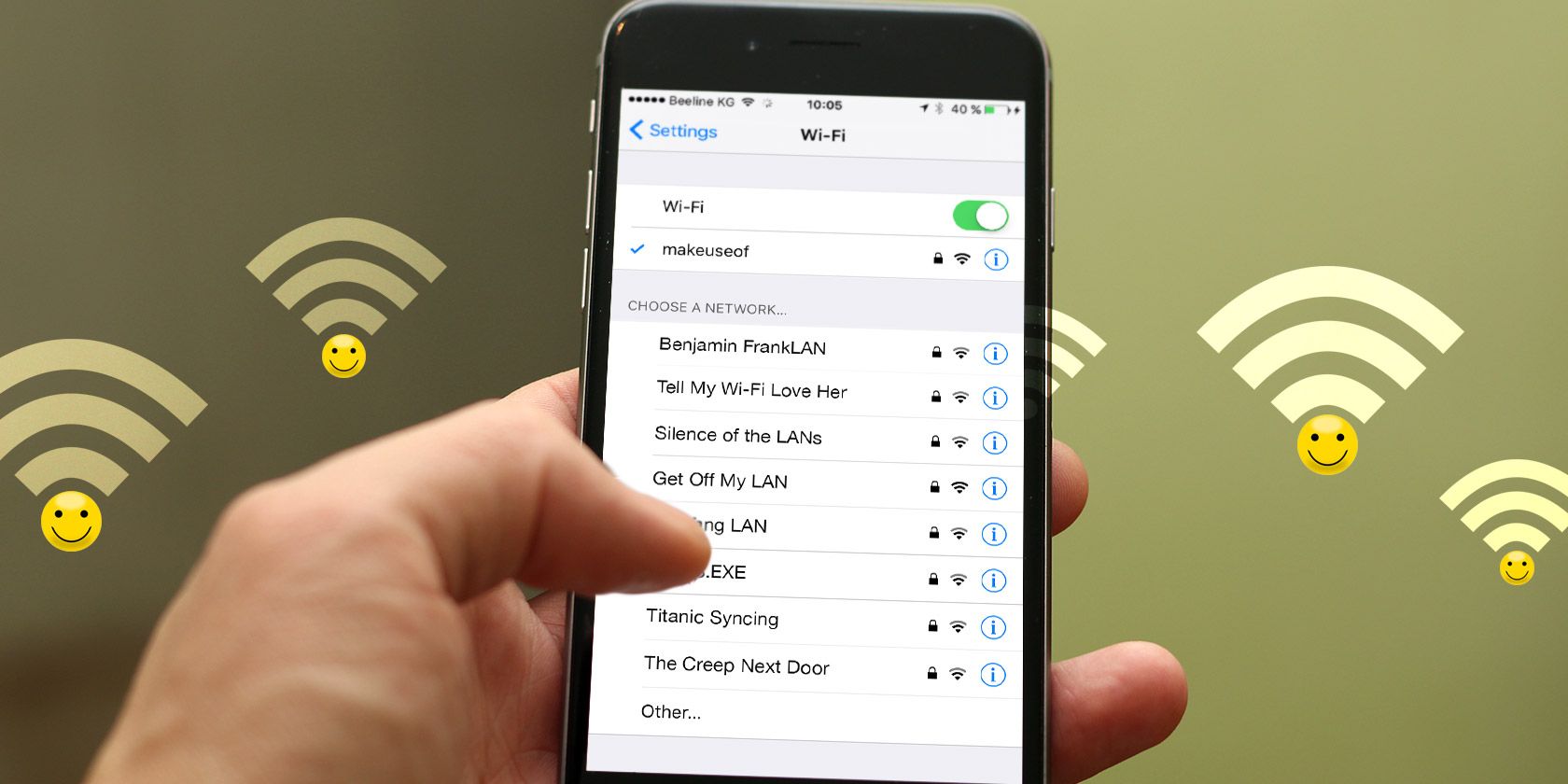
Avoid using your full name, apartment number, phone number, or other details that could identify your household. A network name is visible to devices within wireless range, so there is little advantage in broadcasting personal information. It is also sensible to avoid names that imitate another person’s network or a public hotspot, as this may confuse visitors and connected devices.
Consider these simple guidelines when selecting a new name:
- Choose a short, recognizable name that is easy to distinguish from nearby networks.
- Avoid personal details such as your full name, address, or phone number.
- Use a consistent naming style if you manage separate home and guest networks.
- Check for unusual characters or formatting that might be difficult to enter on older devices.
Although creative names can make a network more memorable, simplicity is often more useful. A straightforward label also makes it easier to identify your router when helping a family member connect a new device or when troubleshooting an internet connection.
Will Changing the WiFi Name Disconnect Connected Devices?
Yes, changing your router’s network name will usually cause devices connected to the old name to disconnect. Your router is broadcasting a new SSID, so phones, laptops, smart televisions, security cameras, and other wireless equipment may not immediately recognize it as the network they previously used. This is normal behavior and does not necessarily indicate a problem with your internet service.
Most modern devices save the network name and password together as a connection profile. When the SSID changes, the old saved profile may no longer match the network being broadcast. You will generally need to select the new network and reconnect using your existing password. Some devices may reconnect automatically if your router and device support compatible network management features, but it is safer to expect that at least some devices will require attention.
Before making the change, consider whether your household relies on smart bulbs, printers, wireless cameras, or connected appliances that are difficult to access physically. These devices may need to be reconfigured through their individual applications. If you rename the network and change its password at the same time, you will need to update both details wherever the old credentials were saved.
For a smoother transition, keep the new name and existing password available while reconnecting devices. Start with your phone or computer, confirm that internet access works, and then reconnect the remaining equipment. If you manage a large smart home, making the change when you have enough time to test everything can prevent unnecessary interruptions.
Common Problems When Changing a WiFi Name
Sometimes the network name field is missing, the router rejects the new name, or the wireless network disappears after saving. These issues can usually be resolved by checking the router’s settings and confirming that the change was applied correctly. Begin by making sure you are signed in to the correct router, particularly if your home has a modem-router combination, a separate wireless router, or a mesh WiFi system.
If you cannot open the administration page, confirm that your phone or computer is connected to the correct local network. Verify the gateway address through your device’s network settings rather than repeatedly trying random addresses. If the login page opens but rejects your credentials, check the router label or official setup information. Avoid resetting the device immediately, because a factory reset can erase the internet configuration supplied by your provider.
If the new name does not appear, wait briefly and refresh the available network list. Check whether the router requires a separate Apply button or a restart before the change takes effect. Some systems allow a different SSID for the guest network, so make sure you are editing the main network rather than an unrelated wireless profile. If you use a mesh system, the main router or its management application may control the names of all connected access points.
A few practical checks can help narrow down the problem:
- Confirm that you changed the correct wireless network or frequency band.
- Restart your phone or computer’s WiFi connection if the new name is not visible.
- Check the router’s official instructions if the administration menu differs from expectations.
- Contact your internet provider if its equipment prevents you from changing the SSID.
If the problem continues, avoid experimenting with advanced wireless, WAN, or DHCP settings. These controls affect how your network operates and are not normally required for renaming a WiFi connection. Your router manufacturer or provider can give model-specific instructions without putting your internet configuration at unnecessary risk.
Does Changing the WiFi Name Improve Security?
Changing the network name can improve privacy in a limited way, especially if the original SSID contains a personal name, address, or identifiable router information. However, the SSID itself is not a security password. A creative or unfamiliar network name does not prevent unauthorized access if your wireless password is weak or your router uses outdated security settings.
For better protection, use WPA3-Personal when supported by your router and connected devices, or WPA2-AES if WPA3 is unavailable. Choose a strong, unique WiFi password and change the router administrator password if it still uses a default credential. Keeping the router firmware updated also helps address security issues and maintain compatibility with newer devices.
You should review remote administration, guest network access, and other security options if they are available. A guest network can provide visitors with internet access without sharing the main network credentials, although the degree of separation depends on the router’s configuration. These measures provide more meaningful security improvements than simply replacing the network name.
It is also worth remembering that hiding the SSID is not a substitute for proper security. A hidden network can still be discovered through technical means, and some devices may handle hidden connections less conveniently. In most homes, a recognizable network name combined with modern encryption and a strong password is a more practical approach.
Conclusion
Learning how to change wifi name is a straightforward way to personalize your home internet connection and make it easier to recognize. Whether you use a router’s browser-based administration page or an official mobile application, the essential process is generally the same: sign in, open the wireless settings, update the SSID, and save the changes. The exact steps depend on your router model and provider, but you rarely need specialized technical skills to complete the task. Before renaming your network, choose a label that is simple, memorable, and free from personal information. Keep your current password available, since connected devices may need to reconnect after the router begins broadcasting the new name. If you manage smart home equipment, allow enough time to update its saved network settings and verify that everything works correctly.