


A reliable wireless internet connection has become an essential part of everyday life. From working remotely and attending online classes to streaming entertainment and managing smart home devices, WiFi supports countless daily activities. However, many people continue using the default network name provided by their router manufacturer or internet service provider. These default names can be confusing, particularly when several nearby households use similar routers.
Understanding how to change wifi name allows you to personalize your wireless network and make it easier to recognize. Whether you have recently installed a new broadband connection or want to update your existing network, changing its name is a relatively simple process that usually takes only a few minutes.
Modern routers offer several ways to customize wireless network settings. You can use a smartphone, laptop, desktop computer or a dedicated router management application. This guide explains the complete process, important security considerations, common problems and practical recommendations for managing your wireless network effectively.
What Is a WiFi Name and Why Does It Matter?
A WiFi name is technically known as a Service Set Identifier, commonly abbreviated as SSID. It is the name displayed when a smartphone, computer, television or another wireless device searches for available internet networks. Every wireless router broadcasts at least one network name unless its administrator has configured the router to hide it. Manufacturers generally assign default names containing their brand, model number or a combination of letters and numbers.
Although a network name does not directly determine internet speed, it plays an important role in network identification and everyday convenience. A customized name helps household members distinguish their connection from neighboring networks. Businesses can also create recognizable wireless networks for employees and visitors. Choosing an appropriate name without revealing unnecessary personal information can additionally support better privacy practices.
Why Should You Change Your Default WiFi Name?
Most routers arrive with preconfigured wireless network names. While these names are functional, they are rarely memorable or personalized. In apartment buildings, residential communities and commercial areas, multiple routers may broadcast nearly identical names. This situation can cause confusion when connecting a new smartphone or sharing network details with visitors.
Learning how to change wifi name gives you greater control over your home or business network. A customized SSID makes network identification easier and may prevent unnecessary disclosure of your router manufacturer or model. However, renaming a network alone does not provide complete protection against unauthorized access. Strong passwords, updated firmware and modern encryption standards remain more important security measures. Changing the default name should therefore be considered one part of responsible wireless network management rather than a complete security solution.
Things You Need Before Changing Your Wireless Network Name
Before accessing your router settings, you should gather some basic information. Most routers require administrator authentication before allowing users to modify network configurations. These credentials may differ from the password you normally enter when connecting to WiFi. Depending on your router, the administrator details might be available on its label, installation documents or the official management application provided by your internet service provider.
Having the necessary information ready prevents unnecessary interruptions during the configuration process. You should also ensure that you have permission to modify the network and that other users are informed about the upcoming change.
The following items are generally required:
-
A smartphone, laptop or desktop computer.
-
Access to your existing wireless network or an Ethernet connection.
-
Your router’s administrator username and password.
-
The router’s management IP address or official application.
-
A suitable new wireless network name.
Once these requirements are available, you can proceed without making unnecessary changes to other internet settings.
How to Access Your Router Settings
Router settings are typically available through a local management interface. To access this interface, connect your device to the router and open an internet browser. Enter the router’s management IP address into the browser’s address bar. This opens a login screen where you can enter your administrator credentials. The exact address varies depending on the manufacturer and configuration of your network.

After successfully signing in, you will find a dashboard containing various network management options. Look for settings labeled Wireless, WiFi, Network Settings or WLAN. Some modern routers use simplified interfaces that display the network name directly on the dashboard. Others place these options under advanced configuration menus. If you cannot locate the appropriate section immediately, check the router’s documentation rather than experimenting with unfamiliar settings that could interrupt your internet connection.
Step-by-Step Process for Renaming Your Wireless Network
Step 1: Connect Your Device to the Router
The first step in understanding how to change wifi name is establishing a connection with the router you intend to configure. You can connect through your existing wireless network or use an Ethernet cable if your computer supports a wired connection. A wired connection is often preferable because changing wireless settings may temporarily disconnect devices that are using WiFi.
Make sure you are connected to the correct router, especially when working in an environment containing multiple wireless access points. If your device is connected to a different network, you may be unable to access the intended router’s administration interface.
Step 2: Find the Router Management Address
Your router management address provides access to its internal configuration dashboard. Common private IP addresses include 192.168.1.1 and 192.168.0.1, although these are not universal. Some routers use different addresses depending on the manufacturer or internet service provider.
On a Windows computer, you can identify the router address by checking the default gateway information in your network settings or using the ipconfig command. Smartphone users can usually find gateway or router information within the details of their connected wireless network. Once identified, enter the address into your browser to access the management interface.
Step 3: Sign In to the Administrator Dashboard
When the router login screen appears, enter the required administrator credentials. Remember that these credentials are not necessarily the same as your wireless network password. Many newer routers require users to create a unique administrator password during their initial setup, while older models may have factory-configured login details.
If you have forgotten your administrator password, check whether your router offers an account recovery option. Avoid performing a factory reset unless absolutely necessary. Resetting the router may remove existing internet configurations, parental controls, wireless settings and other personalized preferences.
Step 4: Locate the Wireless Network Name
After signing in, navigate to the wireless configuration section. Search for a field labeled SSID, WiFi Name, Wireless Network Name or Network Identifier. This field contains the name currently displayed on nearby wireless devices. Routers supporting multiple frequency bands may show separate network names for each band.
Enter your preferred network name into the appropriate field. Select a name that is easy to recognize and does not contain sensitive personal information. If your router uses a unified network name across multiple frequency bands, you may only need to modify one field.
Step 5: Save Changes and Reconnect Your Devices
Once you have entered the new network name, select the Save or Apply option. Your router may restart its wireless service to activate the updated configuration. During this period, connected devices may temporarily lose access to the network. This is normal and generally does not indicate a problem with your broadband connection.
Open the wireless settings on your smartphone or computer and search for the newly created network name. Select it and enter your existing password if you have not changed it. Repeat this process for other household devices, including televisions, printers, security cameras and smart home accessories.
Changing Wireless Network Names on Different Devices
The method used to rename a wireless network depends largely on the type of router and the management features available. Some people prefer using a desktop computer because larger screens make configuration menus easier to navigate. Others find smartphone applications more convenient.
If you are researching how to change wifi name using different devices, the following comparison explains the general methods available.
| Device or Platform | Configuration Method | Main Advantage |
|---|---|---|
| Windows computer | Router administration dashboard | Easy access to advanced settings |
| Mac computer | Browser-based management interface | Convenient configuration |
| Android smartphone | Browser or router application | Quick mobile access |
| iPhone or iPad | Browser or supported application | Simple network management |
| Mesh WiFi system | Dedicated management application | Centralized network configuration |
| Ethernet-connected computer | Local router dashboard | Stable connection during updates |
Although the interface may differ between devices, the underlying process remains similar. You must access the router’s configuration settings, identify the wireless network name and save the updated information.
Changing Your WiFi Name Using an Android Smartphone
Android smartphones provide a convenient method for managing wireless networks without requiring a computer. Begin by connecting your phone to the network you want to rename. Open the WiFi settings and view the details of your active connection. Depending on your Android version and device manufacturer, the gateway address may appear under advanced network information.
Enter the router’s management address into your mobile browser and sign in using the appropriate credentials. Navigate to the wireless settings and update the SSID field. If your router manufacturer provides a compatible management application, you may also complete the process through that application. After saving the changes, reconnect your Android device using the updated network name. Other household devices will generally require reconnection as well.
Renaming a Wireless Network Using an iPhone
iPhone users can also manage router configurations without accessing a desktop computer. Open the Settings application, select WiFi and tap the information icon beside your connected network. The router address is generally displayed within the IPv4 information section. You can use this address to access the router’s management dashboard through Safari or another supported browser.
Once authenticated, locate the wireless network settings and enter your preferred name. Save the changes and return to your iPhone’s WiFi settings. Select the renamed network and provide its password when requested. Some modern routers and mesh systems offer dedicated iPhone applications that simplify this process by providing direct access to essential wireless configuration options.
Changing WiFi Names on Dual-Band and Tri-Band Routers
Modern wireless routers commonly support multiple frequency bands. Dual-band routers typically operate on 2.4 GHz and 5 GHz frequencies, while certain tri-band models include an additional 5 GHz or 6 GHz band. These frequency bands offer different characteristics regarding coverage, connection capacity and performance.
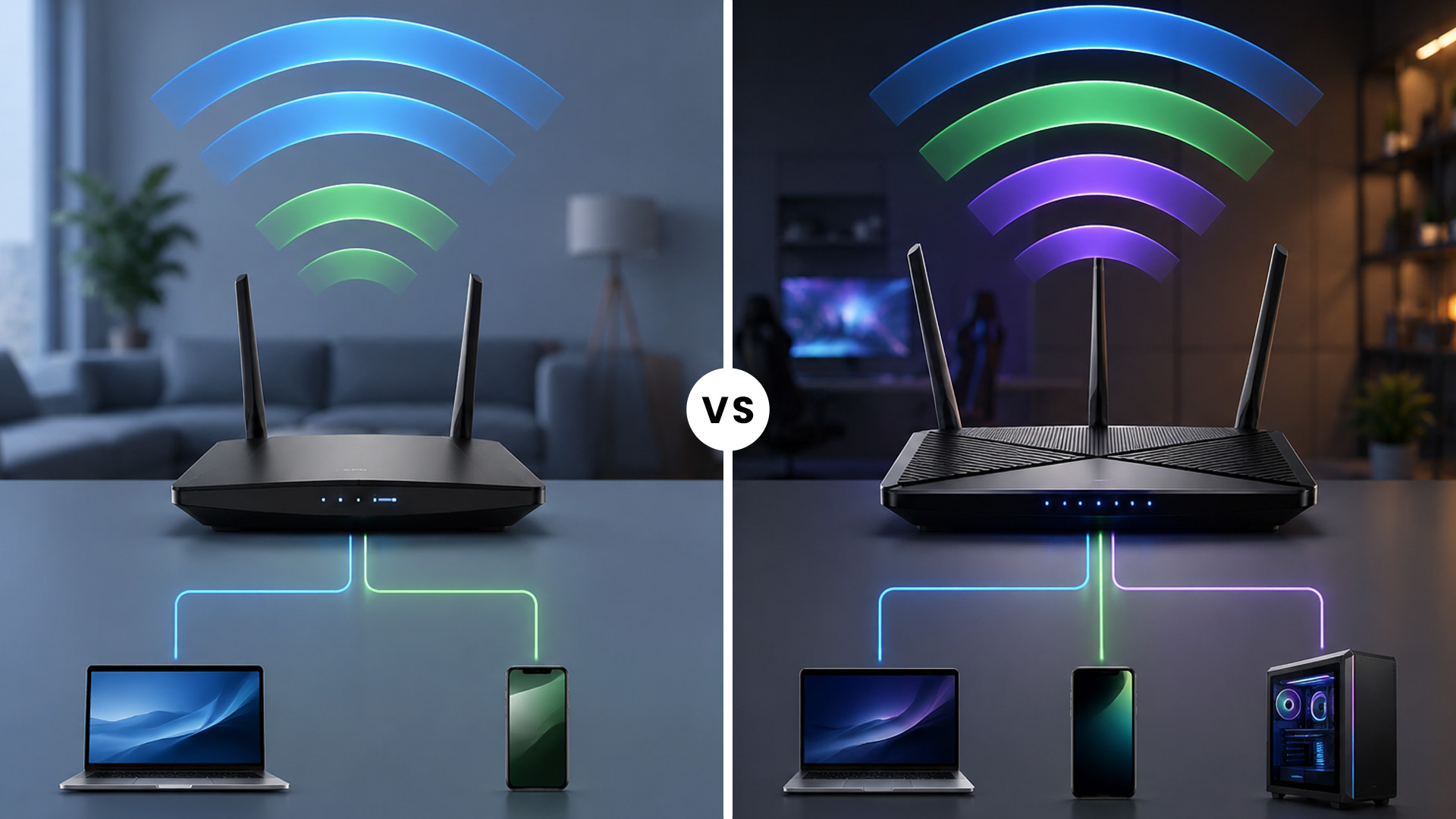
When learning how to change wifi name on a multi-band router, determine whether the device uses separate network names or a unified SSID. Separate names allow users to select a preferred frequency band manually. For example, a household might use HomeConnect_2G and HomeConnect_5G to distinguish its available networks. Alternatively, routers with band steering can use one shared network name and automatically guide compatible devices toward an appropriate frequency band. The best configuration depends on device compatibility, coverage requirements and the router’s available management features.
How to Rename a Mesh WiFi Network
Mesh wireless systems have become increasingly common in larger homes, offices and properties requiring extensive wireless coverage. Unlike traditional single-router installations, mesh systems use multiple connected units to distribute network coverage across different areas. Many of these systems are managed through dedicated smartphone applications rather than conventional browser-based configuration interfaces.
To rename a mesh network, open the official management application and locate the wireless network settings. Select the current network name, enter your preferred replacement and confirm the changes. The system will generally distribute the updated configuration across its connected mesh units automatically. However, individual devices may need to reconnect to the renamed network. Avoid changing each mesh unit independently unless the manufacturer’s configuration specifically requires it.
Tips for Choosing a Good Wireless Network Name
Selecting a wireless network name may seem like a minor decision, but it can influence convenience, privacy and network identification. A suitable name should be recognizable without revealing unnecessary information about your household, address or equipment. Most wireless networks support SSIDs containing up to 32 bytes, although available character options can vary between devices.
Consider these practical recommendations when selecting a new network name:
-
Choose a short, memorable and recognizable name.
-
Avoid including your full name, phone number or home address.
-
Do not include your wireless network password.
-
Avoid complicated characters that older devices may not support.
-
Use distinct names for guest and primary networks when necessary.
A thoughtfully selected network name can simplify connectivity while maintaining a reasonable level of privacy.
Does Changing Your WiFi Name Improve Network Security?
Many people search for how to change wifi name because they believe replacing the default SSID will protect their internet connection. While changing the default name may reduce the amount of easily visible information about your router, it does not prevent unauthorized users from attempting to access your network.
Actual wireless security depends primarily on authentication, encryption and router configuration. Use WPA3 where supported or WPA2 with AES encryption for compatible older devices. Create a strong, unique wireless password and update your router firmware whenever appropriate security updates become available. Changing the administrator password is also important when factory credentials are still active. These measures provide substantially greater security benefits than simply renaming your wireless network. A customized SSID should complement these protections rather than replace them.
Should You Change Your WiFi Password at the Same Time?
Changing your wireless network name provides an opportunity to review your existing password. If you have been using a weak password, sharing the same credentials for several years or allowing numerous visitors to connect, updating it may be a sensible decision. A strong password reduces the likelihood of unauthorized access and helps maintain control over connected devices.
However, changing both the network name and password simultaneously means that every connected device will need updated credentials. This can require additional effort in households with numerous smart appliances. If your existing password is strong and has not been compromised, you can retain it while updating only the network name. Consider your security requirements and the number of connected devices before making both changes.
Common Problems After Changing Your Wireless Network Name
Although renaming a network is generally straightforward, occasional connectivity problems can occur. One common issue involves devices attempting to reconnect automatically using their previously saved network profiles. Since the old network name is no longer available, these devices may remain disconnected until users manually select the updated network.
Another potential issue involves older smart home equipment that supports only certain wireless frequencies or security configurations. If you accidentally change additional wireless settings while updating the SSID, these devices may experience compatibility problems. Check that the original frequency and encryption settings remain unchanged. Restarting an affected device or removing its outdated network profile may resolve connection difficulties. If the problem persists, consult your router’s documentation before making further configuration changes.
Does Renaming WiFi Affect Internet Speed?
Changing a wireless network name does not directly increase or decrease broadband speed. Internet performance depends on factors such as your subscription plan, router capabilities, wireless interference, signal strength, network congestion and the number of active devices. The SSID simply identifies the wireless network and does not control its available bandwidth.
Nevertheless, some users notice temporary performance differences immediately after updating wireless settings because devices reconnect or the router restarts its wireless service. These changes are usually temporary. If your objective is faster internet, consider improving router placement, selecting appropriate frequency bands, reducing interference and upgrading outdated networking equipment. Renaming your wireless connection is useful for organization, but it should not be mistaken for a performance optimization technique.
Frequently Asked Questions
1. Can I change my WiFi name without a computer?
Yes, you can rename your wireless network using a smartphone or tablet. Access your router’s management interface through a mobile browser or use its compatible management application. Administrator access is normally required.
2. How do I find my current WiFi name?
Open the wireless network settings on your smartphone, tablet or computer. The name displayed beside your active wireless connection is generally your current SSID. You can also find it in your router’s management dashboard.
3. Will changing my WiFi name disconnect all devices?
Devices connected to the renamed wireless network will generally lose their existing wireless connection. You must reconnect them using the updated network name. Devices connected through Ethernet are not normally affected by an SSID change alone.
4. How often should I rename my wireless network?
There is no mandatory schedule for renaming a wireless network. You can change its name whenever you purchase a new router, reorganize your network or want a more recognizable identifier.
5. Can two routers have the same WiFi name?
Yes, multiple routers or access points can broadcast identical network names. Properly configured mesh systems often use this approach. However, unrelated neighboring networks with identical names may create confusion or unexpected connection behavior.
6. Can I change my network name without changing its password?
Yes, the wireless network name and password are separate configuration settings. You can modify the SSID while keeping your existing password. Connected wireless devices will generally still require reconnection.
7. Why is my new WiFi name not appearing?
Your router may still be applying the updated configuration, or the changes may not have been saved successfully. Refresh the available wireless networks and verify that the router is broadcasting the updated SSID.
8. Can my internet provider restrict WiFi name changes?
Some internet service providers manage router configurations through dedicated applications or customer accounts. If local administrator access is restricted, you may need to use the provider’s approved management system or contact its customer support team.
Conclusion
Understanding how to change wifi name is a valuable skill for anyone managing a home or business wireless network. The process allows you to replace confusing default names, personalize your connection and simplify network identification. Whether you use a smartphone, computer or dedicated router application, the essential steps involve accessing the administration settings, modifying the SSID and reconnecting your wireless devices.
As wireless technology continues to develop, modern routers provide increasingly convenient network management features. However, maintaining a secure connection requires more than choosing a recognizable network name. Strong passwords, reliable encryption, firmware updates and responsible configuration practices remain essential. By combining these measures with a thoughtfully selected wireless network name, you can create a more organized, accessible and secure digital environment for everyday use.