

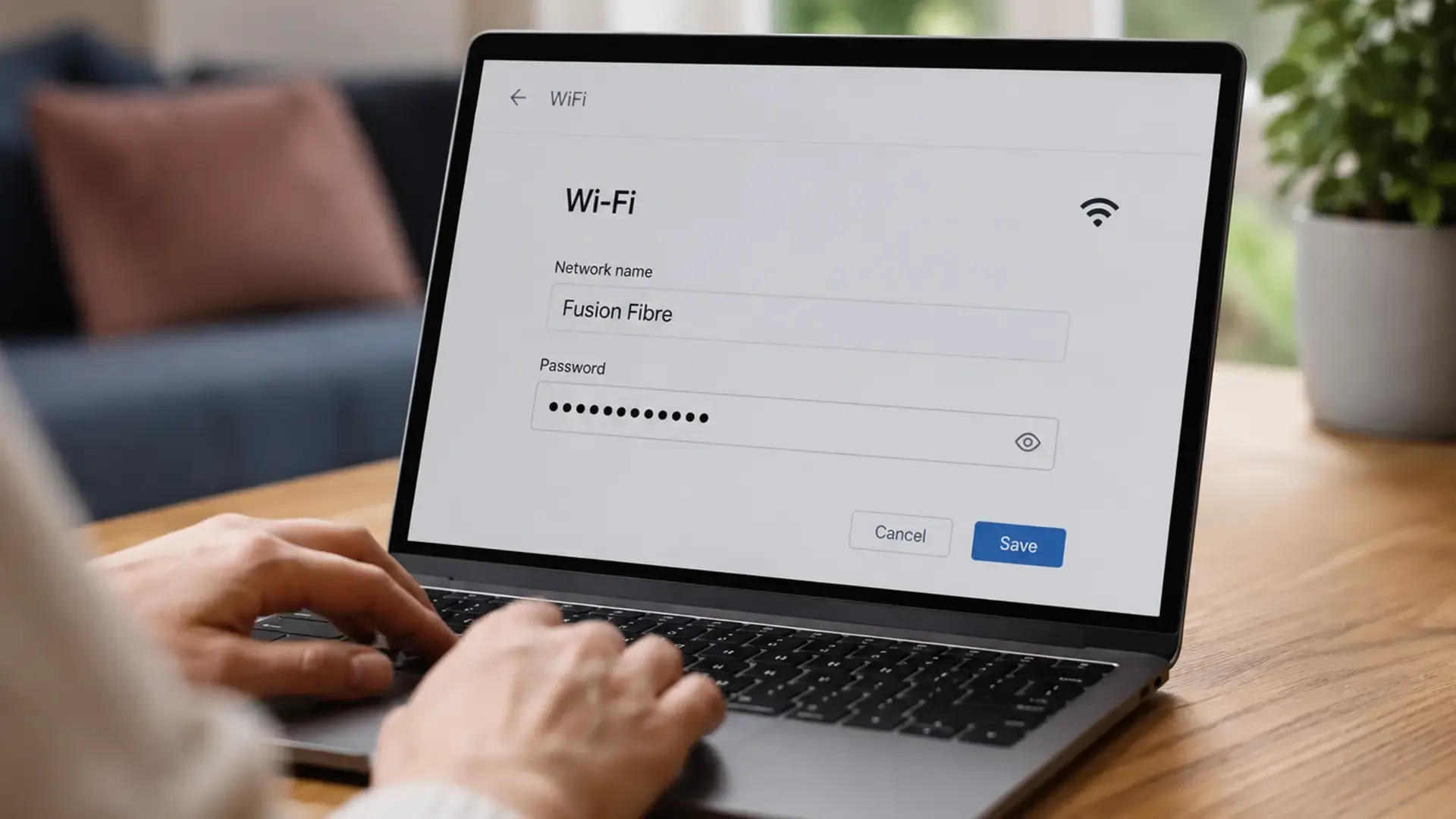

Wireless internet has become an essential part of modern life. From attending online meetings and streaming entertainment to managing smart home devices, people depend on wireless networks for everyday activities. However, many households and businesses continue using the default network names assigned by their internet service providers. These names can be difficult to remember, confusing to identify, and sometimes reveal unnecessary information about the router manufacturer.
Learning how to change wifi name is a simple yet useful way to personalize your internet connection. A customized network name makes it easier to recognize your connection, distinguish it from neighbouring networks, and manage connected devices. Whether you use a smartphone, laptop, desktop computer, or modern router management application, the process generally requires only a few straightforward steps.
Modern routers also provide advanced customization features, including guest networks, parental controls, separate frequency bands, and improved security settings. Understanding how these features work alongside network naming can help you create a more organized and convenient wireless environment for everyone who uses your internet connection.
What Is a WiFi Name and Why Does It Matter?
A WiFi name is technically known as a Service Set Identifier, commonly abbreviated as SSID. It is the name that appears when a smartphone, computer, television, or another wireless device searches for available internet networks. Every wireless router broadcasts at least one network name unless its SSID broadcasting feature has been disabled.
Router manufacturers generally assign default names that may contain their brand name, model information, or randomly generated characters. While these names allow users to connect during the initial installation, they may not be convenient for long-term use. A personalized network name provides a recognizable identity for your internet connection. It is particularly helpful in apartment buildings, offices, and residential neighbourhoods where numerous wireless networks operate within a limited area.
Why Should You Change Your Default Wireless Network Name?
Changing a default network name offers practical benefits beyond personalization. When several nearby households use routers from the same internet provider, their network names may appear almost identical. This similarity can create confusion when connecting new devices or sharing network details with visitors. A distinctive name makes identifying the correct connection much easier.
Another consideration is privacy. Some default names disclose the router manufacturer or model family, providing unnecessary information about your networking equipment. Although changing the SSID does not independently protect a network against cyberattacks, it can complement other security measures. Individuals researching how to change wifi name should also consider updating their wireless password, reviewing encryption settings, and replacing default administrator credentials to establish a stronger security foundation.
Things to Check Before Renaming Your Wireless Network
Before accessing your router settings, ensure that you have the information required to complete the process. Most routers have a dedicated administration interface that allows authorized users to manage network preferences. Accessing this interface typically requires an administrator username and password, which may differ from the password used to connect to the wireless network.
Preparing these details beforehand can prevent unnecessary interruptions during configuration.
-
Ensure your device is connected to the correct router.
-
Identify your router’s administration address.
-
Keep your administrator login credentials available.
-
Choose a suitable new wireless network name.
-
Prepare to reconnect your wireless devices after saving changes.
Remember that changing the network name may temporarily disconnect connected devices. Scheduling the update outside working hours or important online activities can help minimize inconvenience.
How to Access Your Router Administration Panel
The administration panel is the central location for managing wireless network settings. To access it, connect your computer or smartphone to the router using an existing wireless connection or Ethernet cable. Open a browser and enter the router’s local gateway address into the address bar. This address is often printed on the router label or included in its installation documentation.
Once the login interface appears, enter the appropriate administrator credentials. After successfully signing in, look for a section labelled Wireless Settings, WLAN, Network Settings, or WiFi Configuration. The exact terminology depends on the router manufacturer and installed firmware. If you cannot access the administration interface, check whether your internet provider requires you to manage settings through a dedicated mobile application instead.
Step-by-Step Process for Renaming Your WiFi Network
For anyone wondering how to change wifi name, the standard method involves accessing the router dashboard and editing its SSID settings. After signing in, navigate to the wireless configuration section and identify the field displaying your existing network name. Select the field, remove the current name, and enter the new name you want connected devices to recognize.

Once you have entered the preferred name, select the Save or Apply button. Some routers restart automatically, while others update their wireless configuration without requiring a complete reboot. Your connected devices may temporarily lose internet access because the previous network name is no longer available. Open the wireless settings on each device, select the newly named network, and enter the existing password unless you changed it during configuration.
Changing Your WiFi Name Using a Smartphone
Smartphones offer a convenient way to manage router settings without requiring a desktop computer. Connect your smartphone to the wireless network you want to rename and open its browser. Enter the router’s local administration address, sign in with the appropriate credentials, and navigate to the wireless settings section.
Alternatively, many modern routers support manufacturer applications that provide simplified access to network management features. These applications frequently include options for changing network names, updating passwords, monitoring connected devices, and configuring guest access. Smartphone users exploring how to change wifi name can choose either method depending on their networking equipment. After applying the new name, reconnect the smartphone and verify that the internet connection works properly.
Changing Your Wireless Network Name on Windows
Windows computers provide a straightforward way to identify the router’s local gateway address and access its administration interface. Users can open Command Prompt, enter the ipconfig command, and locate the Default Gateway entry associated with their active network connection. This entry generally displays the address needed to access the router configuration dashboard.
After identifying the gateway, enter it into a browser and sign in to the router administration panel. Locate the SSID settings, enter your preferred network name, and save the configuration. Windows may automatically disconnect when the network name changes. Open the available network list from the taskbar, select the new name, and reconnect using the correct password.
Renaming a WiFi Network Using a Mac Computer
Mac users can follow a similar process through their system network settings. Open System Settings, select the active WiFi connection, and review its network details. The TCP/IP section typically displays the router address. Once identified, enter this address into a browser to access the administration interface.
Sign in to the router dashboard and find the wireless configuration section. Replace the existing SSID with your desired network name and apply the changes. The Mac may disconnect automatically as the router updates its configuration. Reconnect by selecting the newly named network from the WiFi menu. If the device continues searching for the previous network, removing the outdated saved connection can help prevent unnecessary connection attempts.
WiFi Name Configuration Across Different Router Brands
Different manufacturers organize their administration dashboards in different ways. However, the basic purpose of their wireless configuration options remains the same. Understanding commonly used menu names can help users navigate their router settings more confidently.
| Router Brand | Typical Settings Section | Network Name Option | Configuration Method |
|---|---|---|---|
| TP-Link | Wireless Settings | SSID or Network Name | Browser or mobile app |
| Netgear | Wireless Setup | Network Name (SSID) | Browser or supported app |
| ASUS | Wireless | Network Name (SSID) | Browser or mobile app |
| D-Link | Wireless Settings | Wireless Network Name | Browser or supported app |
| Linksys | WiFi Settings | WiFi Name | Browser or mobile app |
| Tenda | Wireless Settings | WiFi Name | Browser or supported app |
| Huawei | WLAN Settings | SSID Name | Browser or supported app |
| Google Nest WiFi | WiFi Settings | Network Name | Google Home application |
The exact menu names may vary depending on the router model, firmware version, regional configuration, and internet service provider restrictions. Always use the administration method supported by your specific device.
Understanding Dual-Band and Tri-Band Network Names
Modern wireless routers often support multiple frequency bands, including 2.4 GHz, 5 GHz, and, on compatible equipment, 6 GHz. These bands serve different networking requirements. The 2.4 GHz band generally provides broader coverage, while higher-frequency bands can offer faster connections under suitable conditions. Many smart home devices still rely on 2.4 GHz connectivity.
When researching how to change wifi name on a multi-band router, users may encounter separate SSID fields for different frequency bands. Some routers allow all bands to share one network name through automatic band selection, while others support individual names. Separate names can help users manually select a particular frequency band. However, a unified network name may provide greater convenience when compatible devices automatically connect to an appropriate band.
How to Choose a Suitable Wireless Network Name
Selecting a wireless network name requires balancing creativity, convenience, and privacy. A good name should be recognizable, reasonably short, and easy to communicate when someone needs to connect. Complicated combinations of characters or unusual symbols may create compatibility issues with certain older devices or make manual configuration unnecessarily difficult.
Avoid including sensitive personal information in your SSID. Details such as your full name, house number, telephone number, or business department may reveal information to anyone within wireless broadcasting range. Instead, choose a neutral name that is easy for authorized users to recognize. Names such as MapleNetwork, HomeConnect, BlueSignal, or CloudCorner offer simple examples without exposing unnecessary personal details.
Common Mistakes When Renaming a Wireless Network
Although changing a network name is generally straightforward, certain mistakes can create avoidable problems. Users sometimes confuse the router administrator password with the wireless connection password or accidentally modify unrelated settings while accessing the configuration dashboard.
The following mistakes are particularly worth avoiding:
-
Using personal contact information in the network name.
-
Forgetting to save or apply configuration changes.
-
Accidentally modifying internet service configuration settings.
-
Overlooking smart home devices that require reconnection.
-
Assuming that changing the SSID automatically improves encryption.
Careful preparation and attention to the correct configuration fields can make the renaming process significantly smoother.
Does Changing Your WiFi Name Affect Internet Speed?
Changing the wireless network name does not directly increase or decrease internet speed. The SSID is primarily an identification label that helps devices discover and connect to a network. Internet performance depends on factors such as broadband capacity, router capabilities, signal interference, device limitations, and the distance between connected equipment and the router.
However, if you rename separate frequency bands and begin connecting devices to a more suitable band, you may notice differences in wireless performance. These improvements result from the frequency selection rather than the name itself. Users seeking faster internet should examine router placement, channel congestion, firmware updates, and broadband limitations instead of relying solely on SSID customization.
Improving Wireless Security Alongside Network Renaming
Changing your wireless network name presents an excellent opportunity to review your overall network security. Modern households frequently connect smartphones, laptops, televisions, security cameras, and other internet-enabled equipment to a single router. Protecting this environment requires more than choosing a distinctive SSID.

People learning how to change wifi name should consider using WPA3 encryption when supported by their router and connected devices. WPA2 with AES encryption remains a practical alternative for equipment that does not support WPA3. Creating a strong wireless password, updating router firmware, disabling unnecessary remote administration features, and replacing default administrator credentials can provide more meaningful security improvements than renaming the network alone.
Setting Up a Separate Guest WiFi Network
A guest network allows visitors to access the internet without necessarily receiving access to the primary household or business network. Many modern routers include guest network configuration options that allow users to create a separate SSID, assign an independent password, and restrict access to local network resources.
For example, a household might use HomeConnect as its primary network name and HomeConnectGuest for visitors. This arrangement makes sharing internet access more convenient while helping separate personal equipment from guest devices. To achieve meaningful separation, verify that guest isolation or restrictions on local network access are enabled. Simply assigning a different network name does not guarantee that the two networks are securely isolated.
What Happens to Connected Devices After Changing the SSID?
When a router broadcasts a new wireless network name, previously connected devices may interpret it as an unfamiliar network. Smartphones, laptops, tablets, and smart televisions typically require users to select the new network and enter the password again. This happens because their saved connection profiles are associated with the previous SSID.
Smart home equipment may require additional configuration. Wireless cameras, smart speakers, connected lights, and intelligent appliances sometimes need network settings to be updated through their respective applications. In certain cases, devices must enter setup mode again. Before renaming a network with numerous connected devices, consider the time required to restore connectivity. Maintaining a record of important equipment can make the transition easier to manage.
Troubleshooting Problems After Changing Your Network Name
Occasionally, users experience difficulties after modifying wireless settings. The new network name may not appear immediately, connected equipment may fail to authenticate, or devices may continue attempting to connect to the previous network. These problems can often be resolved by refreshing the available network list, restarting the affected device, or allowing the router sufficient time to apply its configuration.
If the problem continues, reconnect to the router through an Ethernet cable where possible and verify that the new SSID has been saved correctly. Check that wireless broadcasting remains enabled and that the security settings are compatible with your equipment. If you cannot access the router at all, consult the device documentation or contact your internet provider before performing a factory reset, which could erase essential configuration settings.
Managing Wireless Network Names in Modern Smart Homes
Smart homes increasingly depend on stable internet connections to operate connected appliances, entertainment systems, automation equipment, and security devices. As the number of connected products grows, maintaining an organized wireless environment becomes increasingly important.
Understanding how to change wifi name helps homeowners manage their networking arrangements more effectively. A household may choose a unified network for everyday devices, a dedicated guest network for visitors, and an isolated network for compatible smart home equipment. These configurations can simplify network management when supported by the router. However, advanced separation requires appropriate network isolation settings rather than different names alone. Choosing a configuration that matches your household’s requirements can improve convenience and reduce unnecessary networking complications.
Benefits of Customizing Wireless Networks for Businesses
Businesses often operate several wireless connections to accommodate employees, customers, visitors, and operational equipment. Clear network names help distinguish authorized internal connections from publicly accessible guest networks. Restaurants, retail stores, educational institutions, and professional offices can particularly benefit from structured wireless naming conventions.
A professional network name also creates a more organized experience for customers who require internet access. Nevertheless, organizations should avoid broadcasting confidential project names, sensitive department information, or internal infrastructure details. Business wireless networks should be supported by appropriate authentication, access controls, network segmentation, and regular security reviews. A clear naming strategy complements these practices without replacing them.
Frequently Asked Questions
Can I change my WiFi name without changing the password?
Yes. The wireless network name and password are separate configuration settings. You can rename your network while retaining the existing password. However, most connected devices will still need to reconnect to the newly named network.
Can I rename my wireless network without a computer?
Yes. You can use a smartphone or tablet to access your router administration interface. Many router manufacturers and internet service providers also offer mobile applications that support wireless network customization.
What is the maximum length of a WiFi name?
A standard SSID supports up to 32 bytes. For ordinary ASCII characters, this generally means 32 characters. Using a shorter and simpler network name is often more convenient and may improve compatibility with older devices.
Is it safe to change the default network name?
Yes. Changing the default SSID is generally safe when performed through the authorized router administration interface. Ensure that you modify only the intended wireless settings and reconnect your devices afterward.
Why is my new WiFi name not showing?
The router may still be applying configuration changes, or your device may need to refresh its available network list. Verify that SSID broadcasting is enabled and that the updated settings were saved successfully.
Can two routers have the same WiFi name?
Yes. Multiple routers or access points can broadcast identical network names. This is common in mesh networks and professionally configured wireless environments. Independent routers using the same name without coordinated settings may cause connection confusion.
Does renaming WiFi disconnect security cameras?
Wireless security cameras may disconnect because they recognize the previously configured network name. Depending on the camera model, you may need to update its wireless connection through a dedicated application or repeat its network setup process.
How often should I rename my wireless network?
There is no mandatory schedule for changing a wireless network name. You can retain the same SSID as long as it remains suitable for your requirements. Regularly reviewing passwords, encryption settings, and firmware is more important for network security.
Conclusion
Understanding how to change wifi name is a valuable skill for anyone who wants greater control over their wireless internet connection. Whether you are replacing a confusing default SSID, organizing multiple networks, or creating a recognizable connection for family members and visitors, renaming your network is generally a straightforward process.
Modern routers and mobile management applications make wireless customization increasingly accessible. By selecting an appropriate network name, maintaining strong security settings, and reconnecting your devices correctly, you can establish a more organized and convenient networking environment.
Ultimately, a personalized wireless network name is a small but practical improvement that supports better network identification, easier device management, and greater everyday convenience. Combining thoughtful customization with responsible security practices helps ensure your wireless connection remains reliable and suitable for your evolving digital needs.